How to restore old photos on your phone
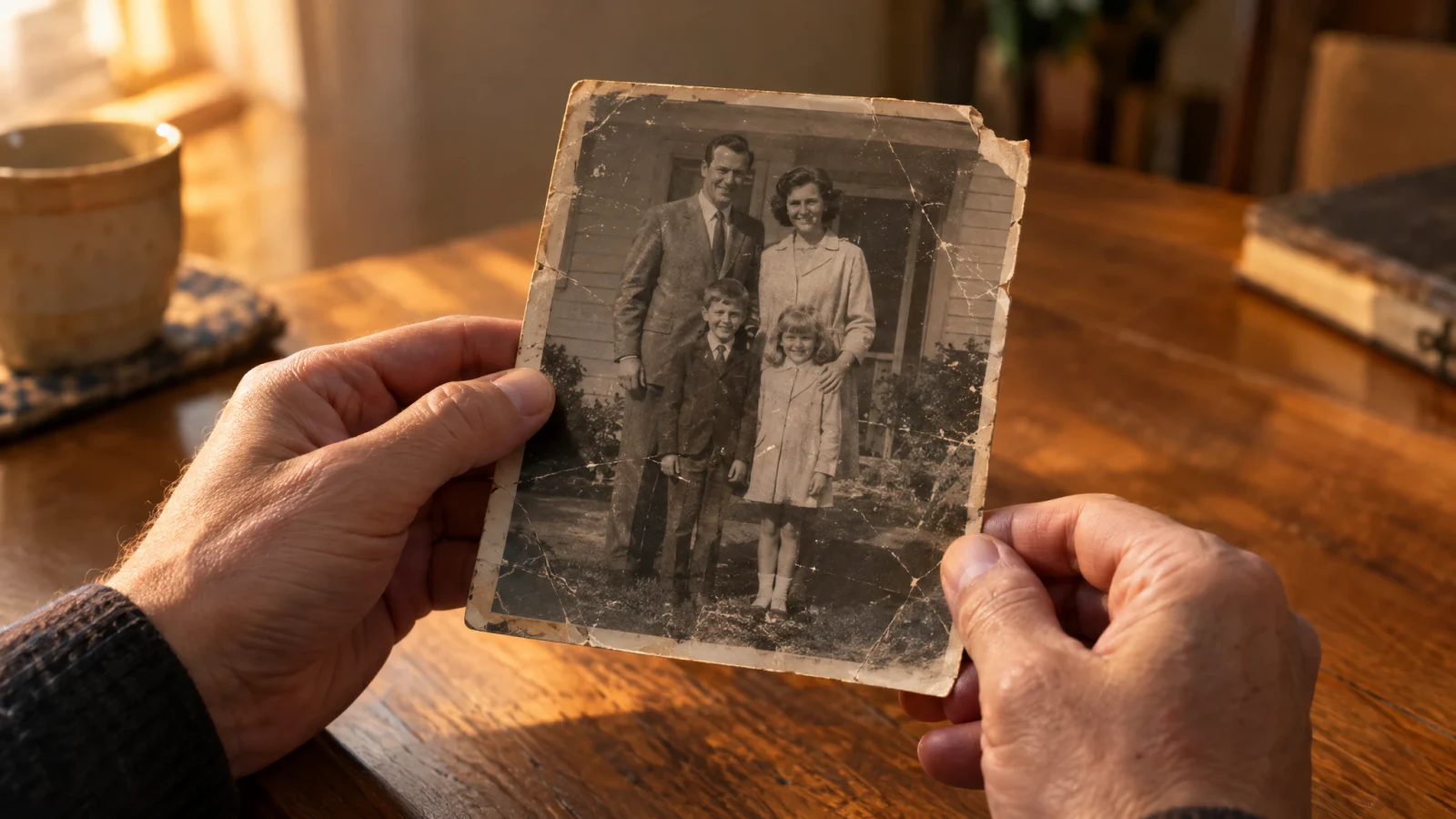
To restore an old photo on your phone, first make a clean digital copy of the print, then run it through a restoration tool and compare the result with the original. In the AiShots darkroom, Restore repairs creases, scratches, tears and faded faces. Detail that is missing from the print is estimated, not recovered, so keep the original print and your first copy.
How do you photograph an old print well?
The copy decides most of the result. A few minutes here save a lot of disappointment later.
- Take the print out of a glossy album sleeve or frame if you can do it without damaging it. Glass and plastic add glare.
- Lay it flat on a table near a window and use soft daylight from the side. Turn off the flash and avoid ceiling lamps right above it.
- Hold the phone parallel to the print so the edges stay straight, and fill the frame with the photo.
- Tap to focus on a face and check that the shot is sharp before moving on. A flatbed scanner is even better if you have one.
How do you restore it in AiShots?
- Open the Darkroom tab.
- Tap Restore, then Choose a photo and pick your copy from the library, or take a photo of the print right there.
- The print goes In the tray while it develops, which can take up to a minute.
- Look at the result next to the original. Save it to Photos or share it. It also stays in the Archive tab under Darkroom and earlier prints.
What can restoration fix, and what can it not?
| Usually improves | Has limits |
|---|---|
| Creases and fold lines | Torn-off corners or missing areas are filled in by estimate |
| Scratches, dust and spots | Heavy blur cannot become a sharp original |
| Small tears | Faces may come back slightly different from how the person looked |
| Faded faces and low contrast | Text, small print and fine patterns may not survive |
Treat a restored print as a clean, readable version for sharing and printing, not as proof of exact detail. If a face matters to your family, show the restored copy alongside the original.
Want color or a bigger print?
Restore first, save the result, then bring it back into the darkroom with Colorize or Enlarge. Working in that order gives the other tools a cleaner picture to start from.
When should you ask a professional?
The app works only on the digital copy and never touches the paper. If the physical print itself is flaking, moldy, stuck to glass or of real historical value, a photograph conservator can stabilize it before anything else.
The darkroom needs the AiShots Pro subscription. The app shows the price for your country before you subscribe, and you can cancel any time in your App Store or Google Play settings. More on the AiShots home page.
Frequently asked questions
Can restoring a photo damage the original?
No. AiShots works on the digital copy you choose. The paper print is never touched, which is another reason to handle it gently while you photograph it.
Can I restore a photo of a photo on a screen?
It works better from the print itself. A photo of a screen adds moiré lines and glare that the restoration has to fight.
Should I restore before I colorize?
Yes. Repairing creases and scratches first gives Colorize a cleaner picture, so the colors follow the shapes instead of the damage.
Is restoring free?
The app is free to download, but the darkroom needs the Pro subscription. The price for your country appears in the app before you subscribe.